If you're already a BitPOS client? then BitPOS Tindahan web app is free, contact us now to integrate BitPOS Tindahan to your BitPOS Point Of Sale
/
BitPOS Tindahan start selling online, 
connect your store to - BitPOS Tindahan
/
Steps on how Store Owners Register and Monitor their Tindahan Orders
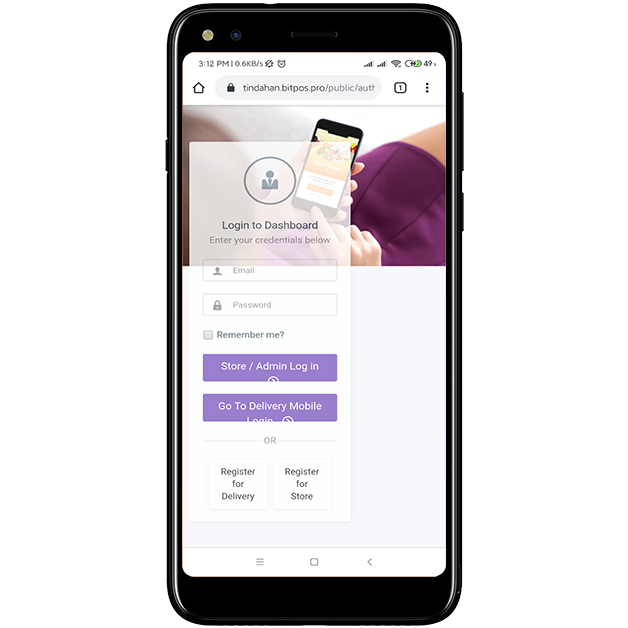
In order for Owners to register to the BitPOS Tindahan, just go to this link:
https://tindahan.bitpos.pro/public/auth/login
Step 1
/
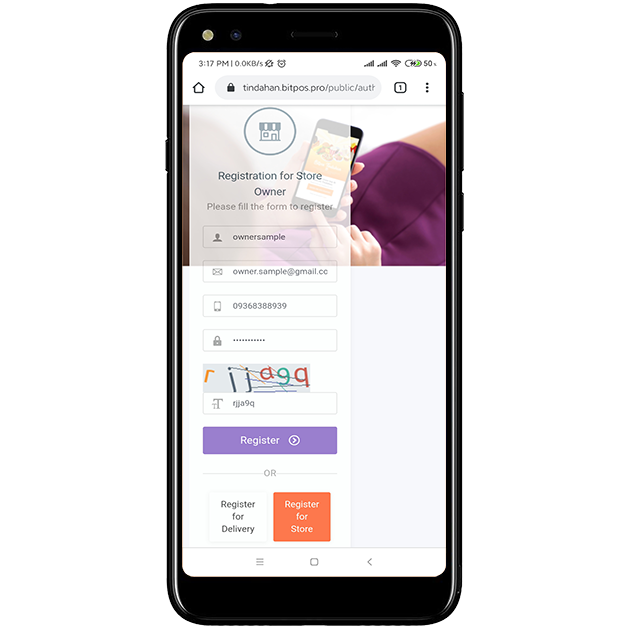
After you click the "Register for Store" you will be redirected to application page. Fill in all the needed information and don't forget to include the captcha, to verify that you are not an autonomous robot application.
Step 2
/
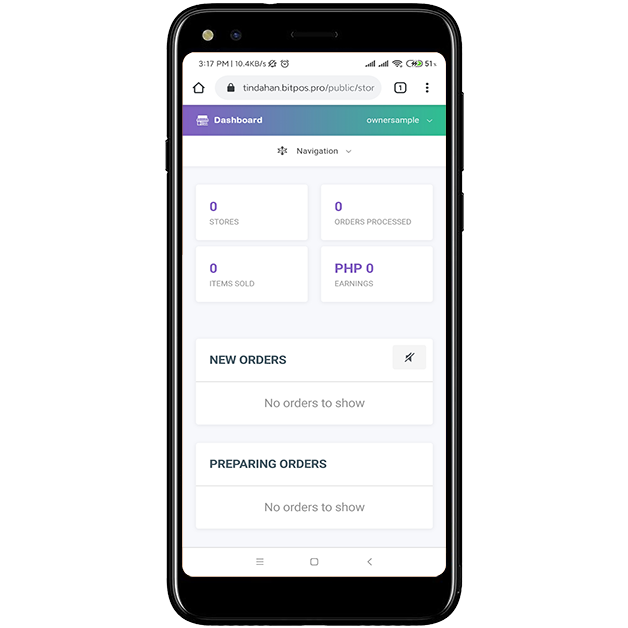
After Successful registration of your owner account. You will then be able to see all the information on your BitPOS Tindahan Store.
 
You can see here the new orders, preparing orders and also all the sales.
Monitor and track your orders here in this page.
Step 3
/
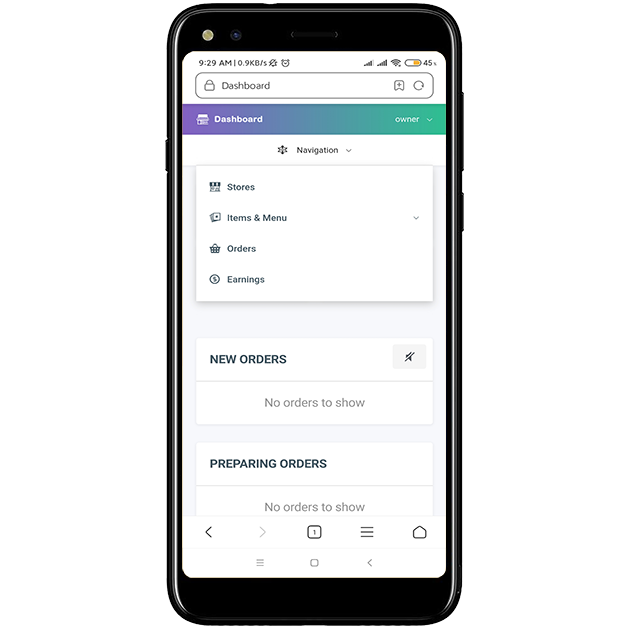
To add your store in the BitPOS Tindahan, Click Navigation and choose Stores.

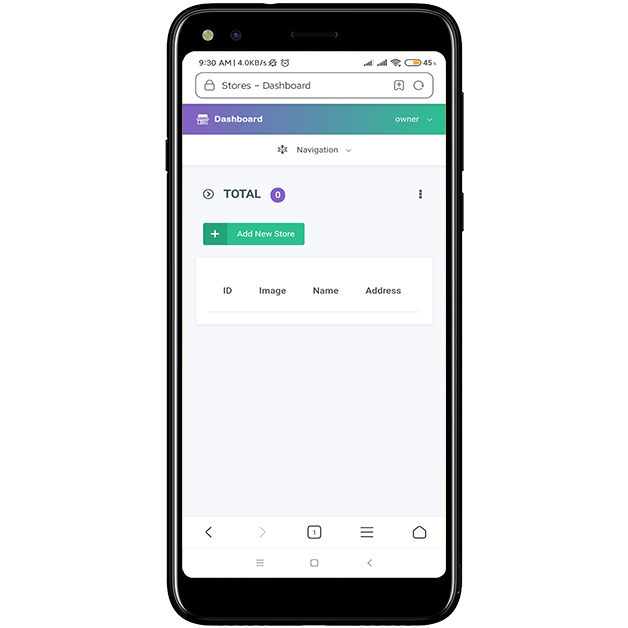
Click the three dots (button) to reveal the add button.
Step 4
/
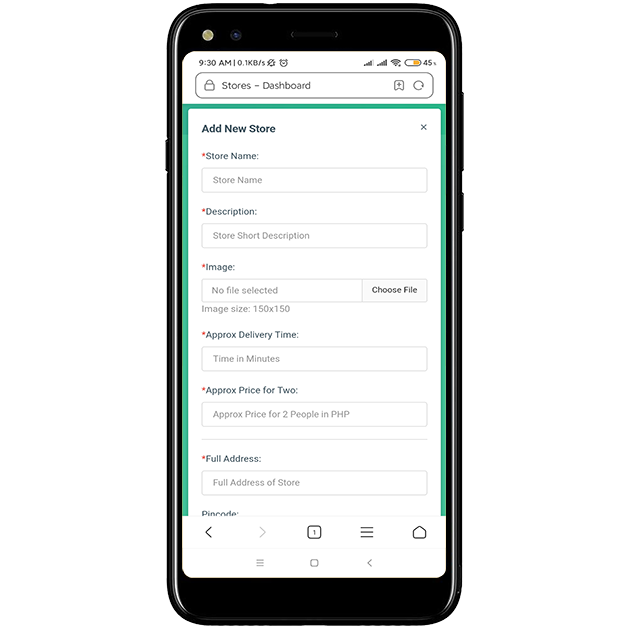
Click the Add New Store to start filling the necessary information about your store.
Step 5
/
Fill in all the necessary fields so that you can add your store at BitPOS Tindahan.
Step 6
/
After successfully adding your store the BitPOS Tindahan Admin will accept your newly added store once all your information has been submitted.

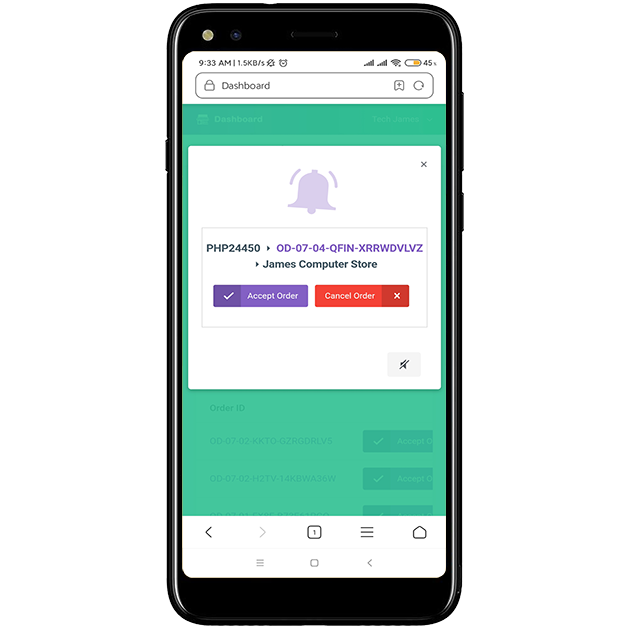
You can now start receiving orders from your BitPOS Tindahan connected store. It will notify whenever there is an order. 
Step 7
/
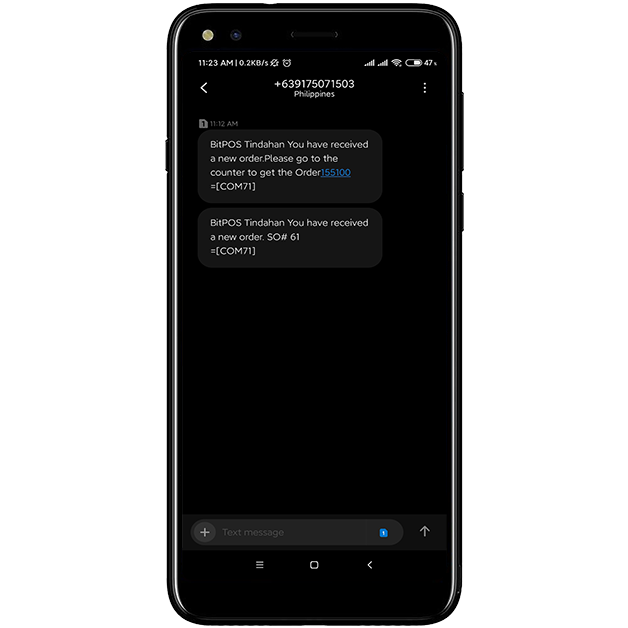
Aside from the notification of a new order, the store owner and/or delivery guy will receive a text message from the system.

The message contains the total amount of ordered items and the S.O. (Sales Order) number for SO Fetch in the Cashier Terminal  for point of sales transaction processing.
Step 8
/
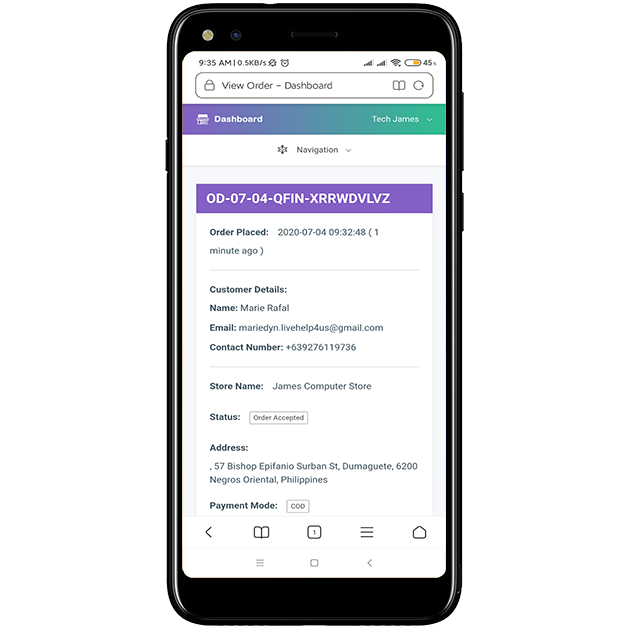
View the order and start preparing it for the delivery guy to pick-up later.
Step 9
/
View the order and start preparing it for the delivery guy to pick-up later.
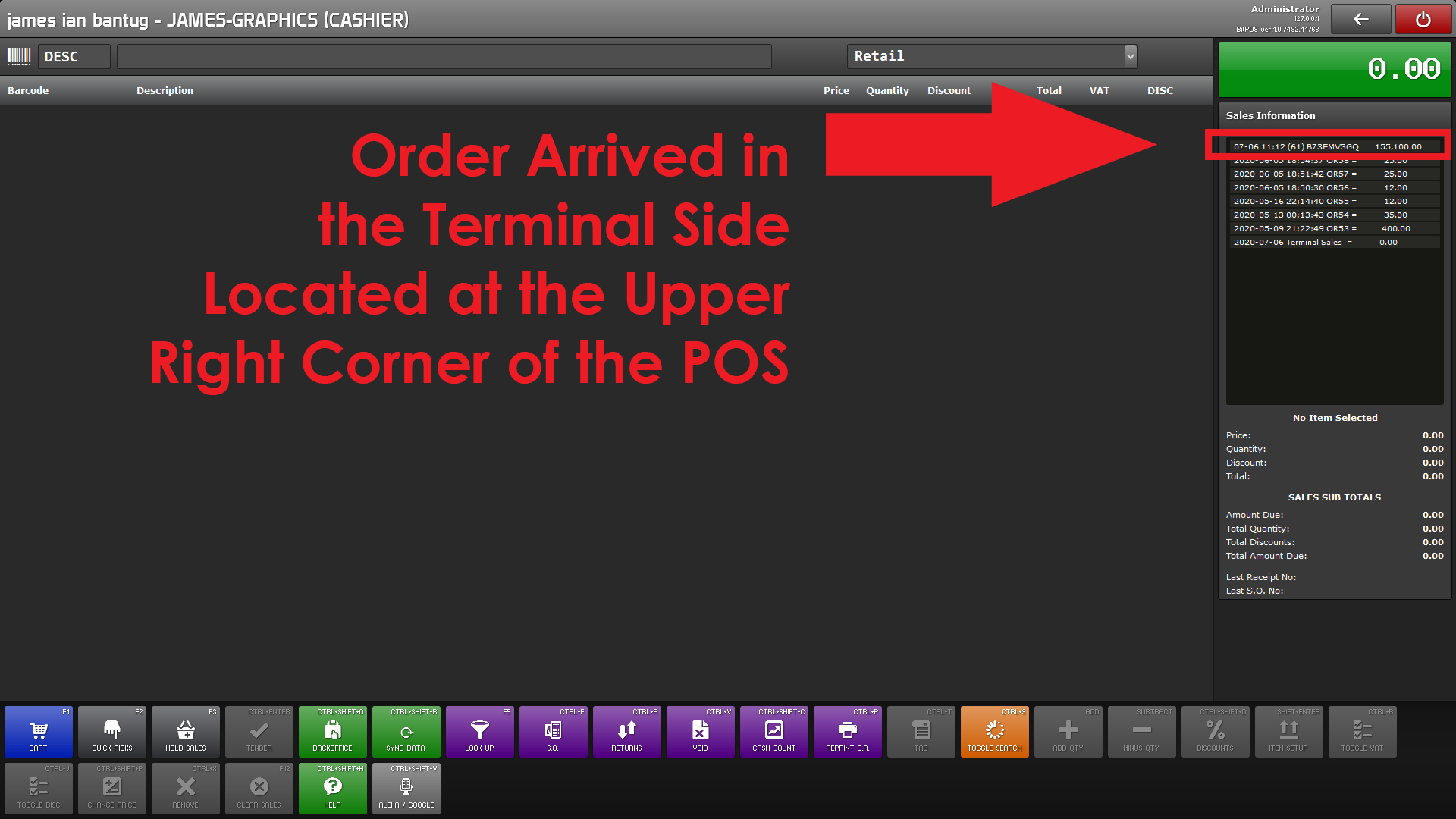
In the Terminal Side (Cashier)
Step 10
/
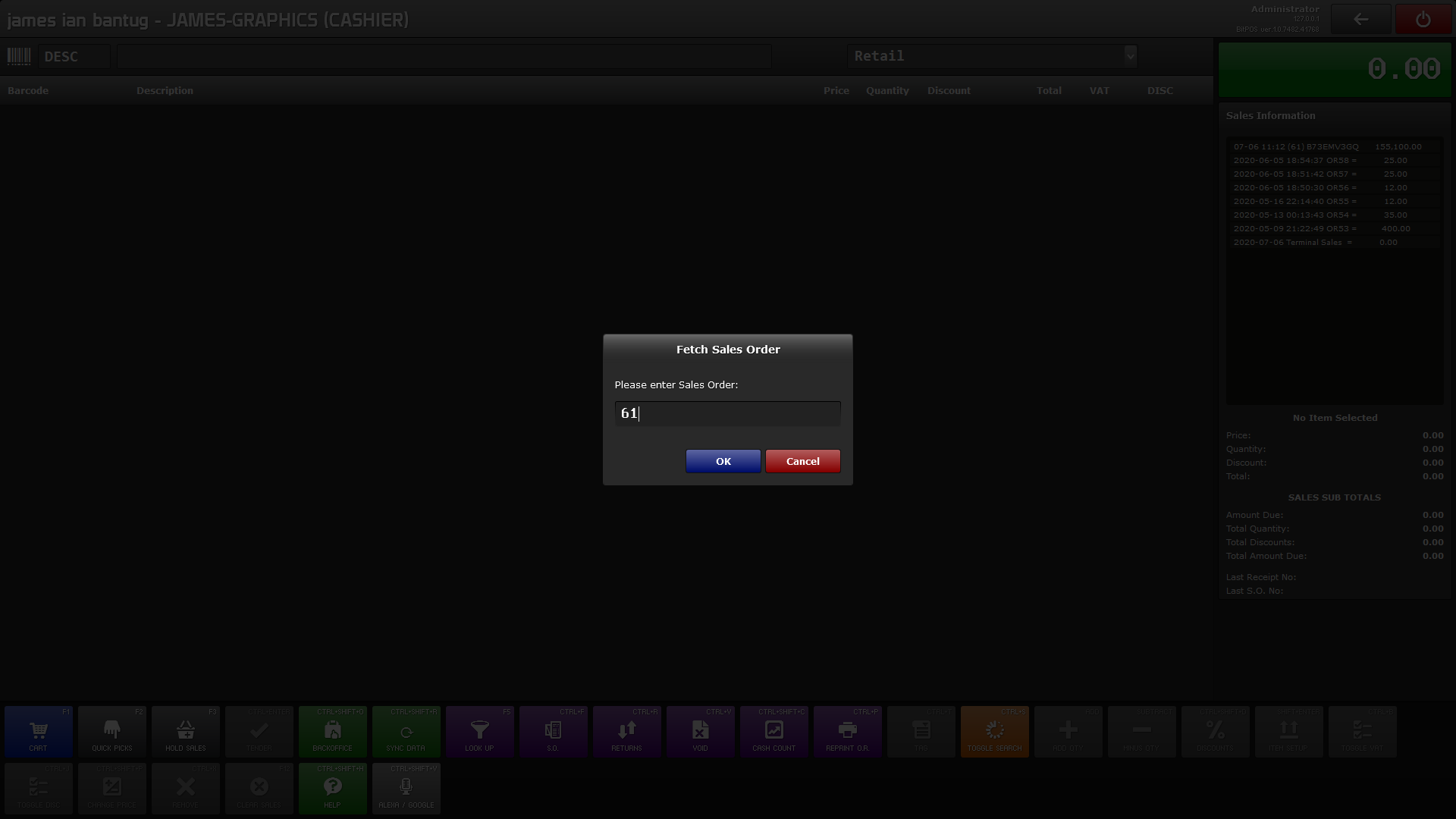
Fetching S.O. (Sales Order) in order to view and manage the order from the BitPOS Tindahan. 
In the Terminal Side (Cashier)
Step 11
/
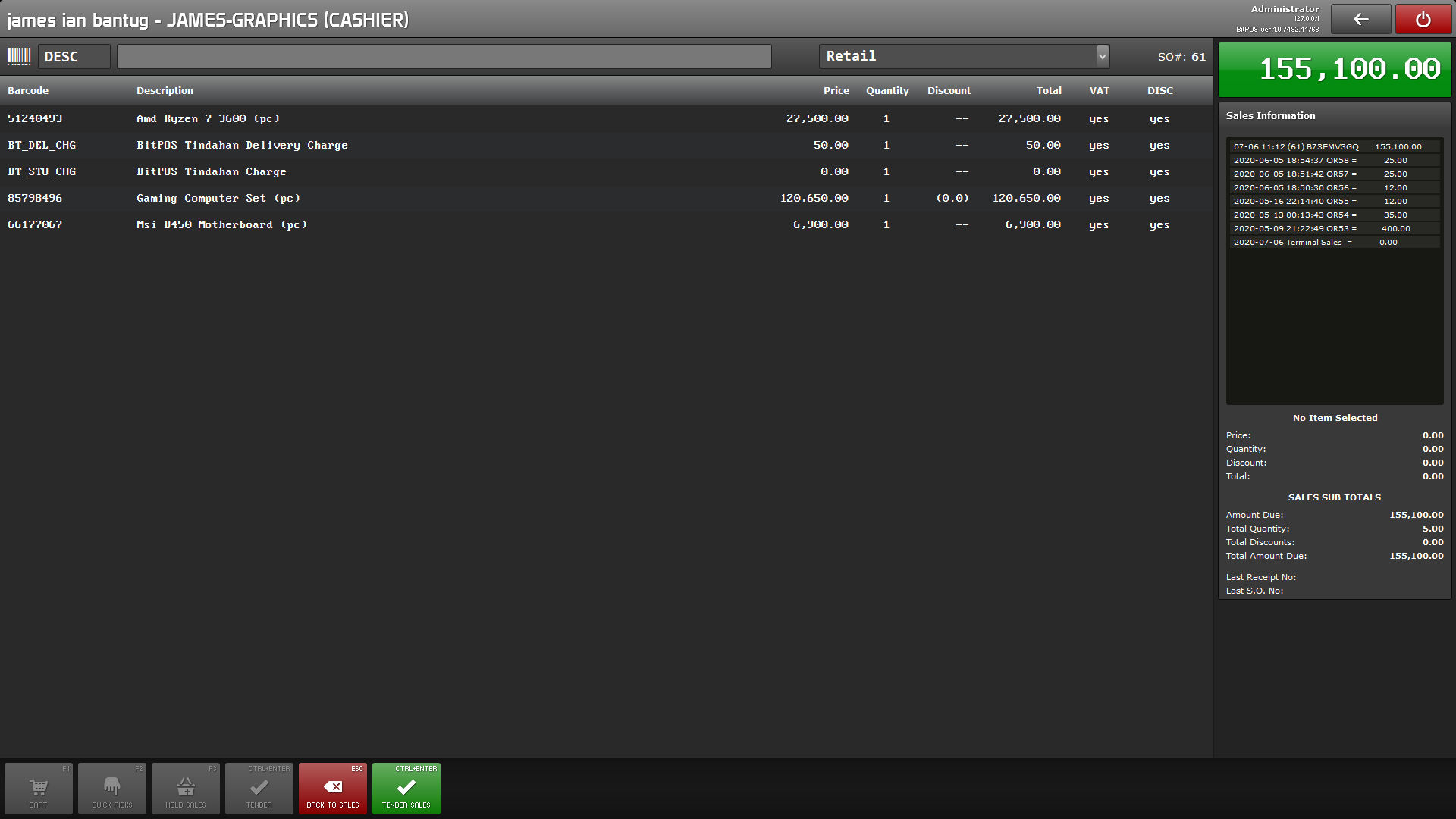
After fetching the Sales Order number, it will display in the cashiers interface showing all the information about the ordered product and all of the charges.
In the Terminal Side (Cashier)
Step 12
/
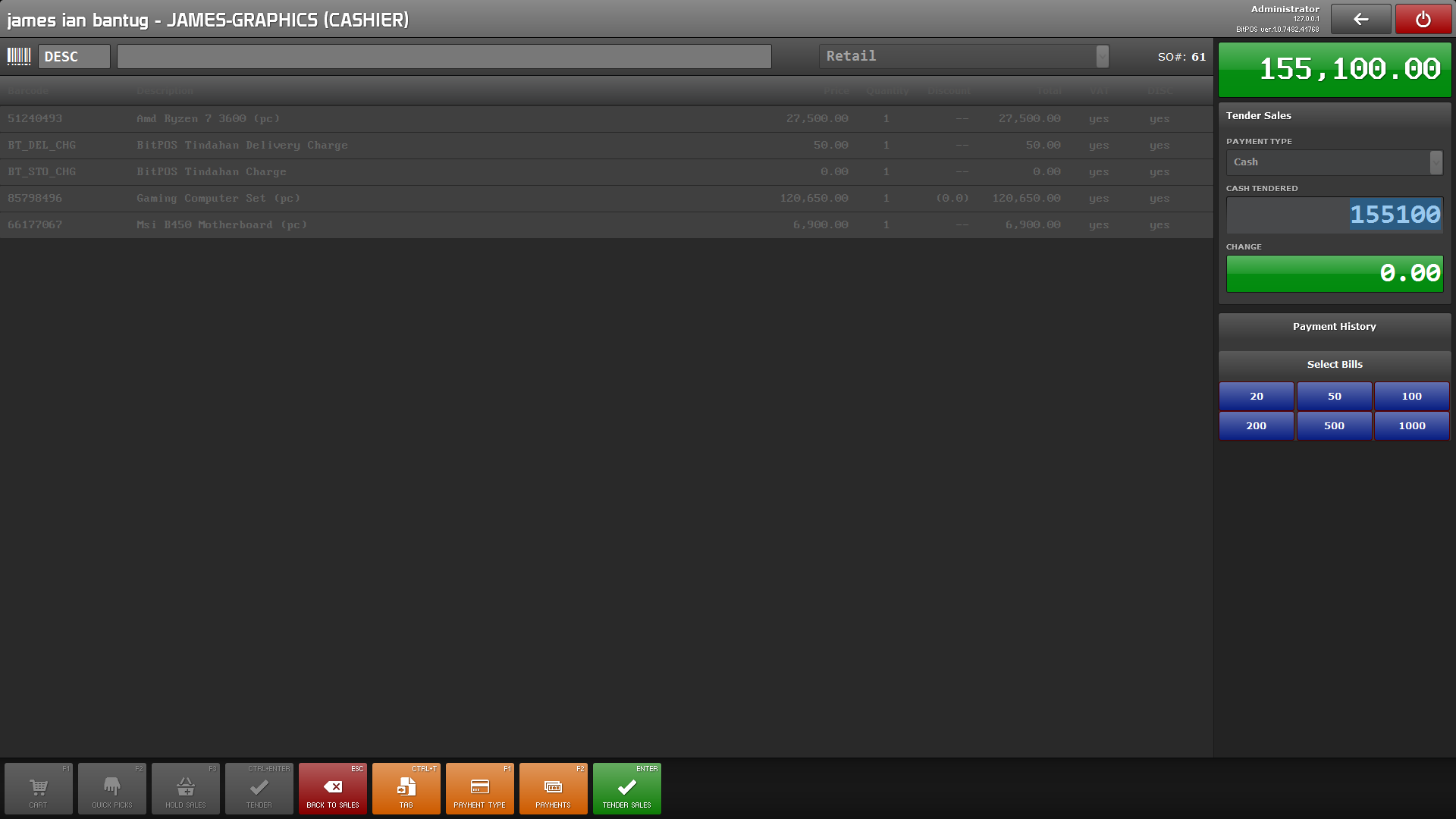
Tender the the items ordered. It depends on you if the the customer has declared his/her amount of money so that the rider / delivery guy can prepare exact change for the money.
In the Terminal Side (Cashier)
Step 13
/
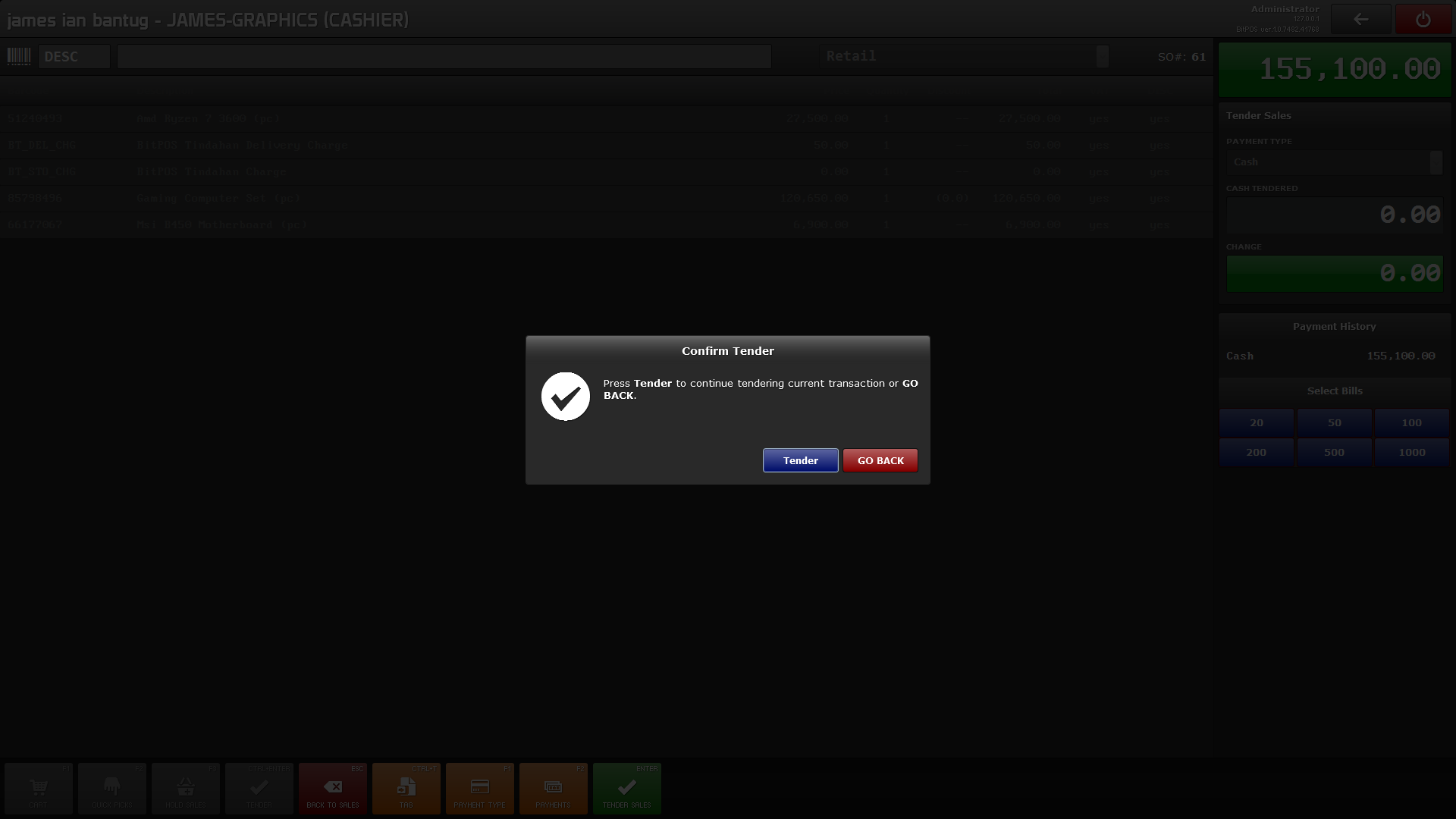
Confirm the tendering of orders so that you can print the receipt. Tender the items if the delivery guy is there and ready to pickup the orders.
In the Terminal Side (Cashier)
Step 14
/
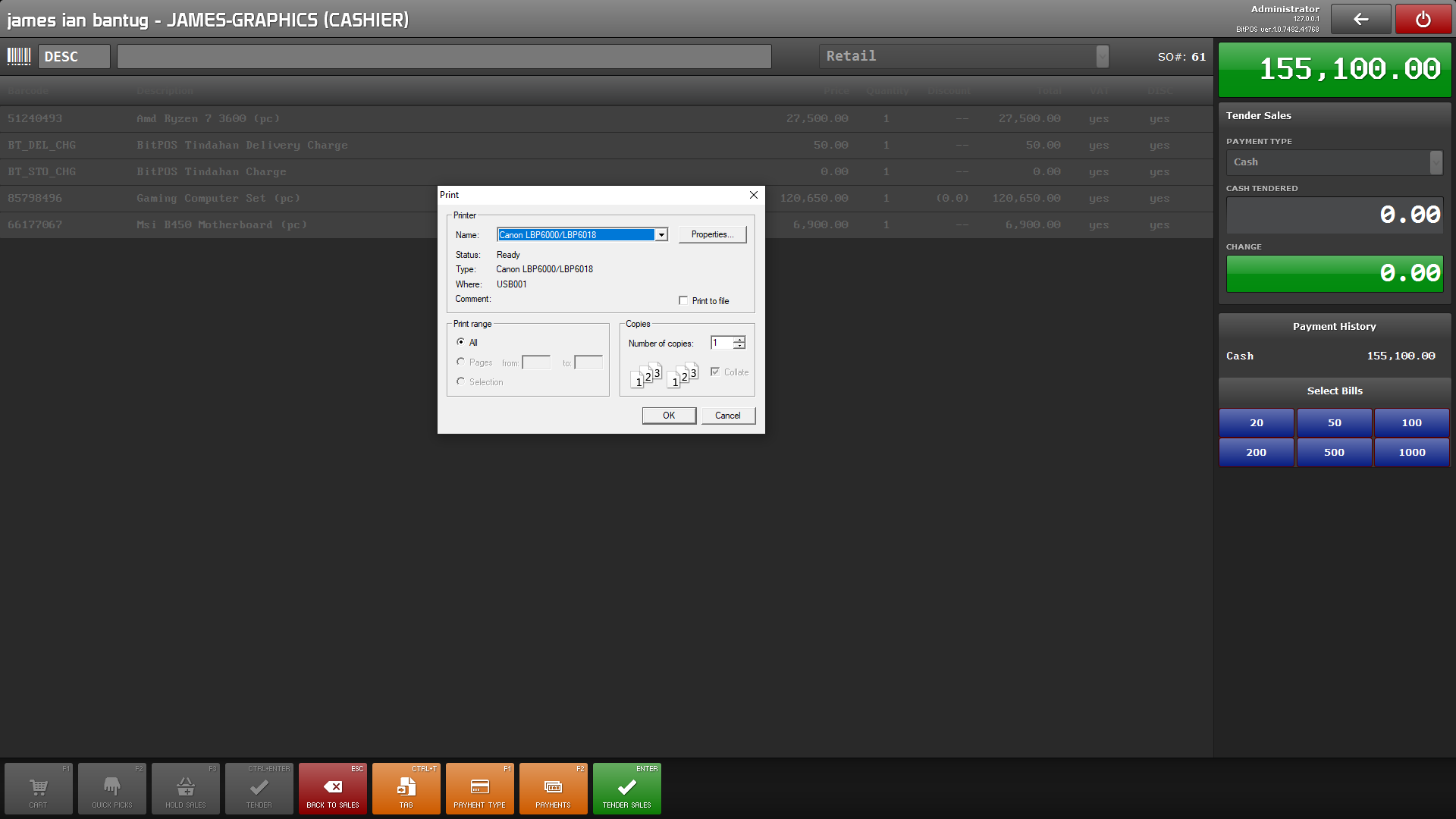
Confirm this prompt in order to print the receipt for the delivery. After this the S.O will be converted into O.R. or official receipt.

Now the Delivery guy is out for delivery after a successful pickup from the store.
In the Terminal Side (Cashier)
Step 15
/
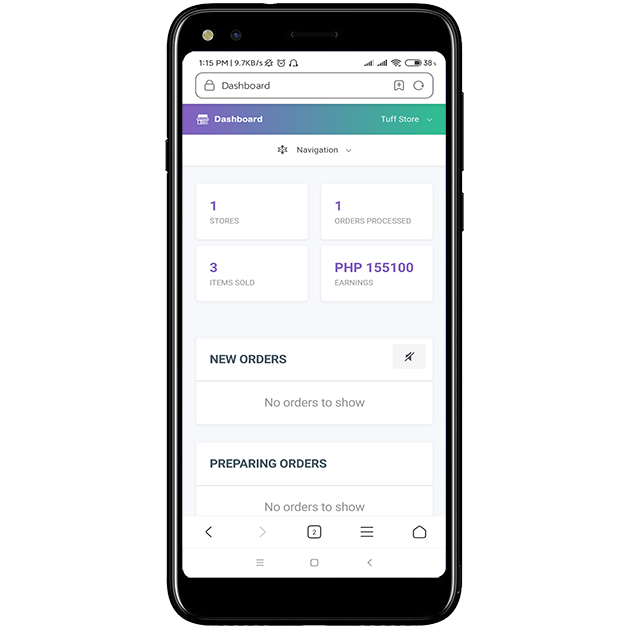
Check your Store Owner's Dashboard in order to see the total sales and successful deliveries of the ordered items from BitPOS Tindahan.

That's how easy you can track and manage your BitPOS Tindahan Stores.
Last Step
/
That's how you register your Store to  BitPOS Tindahan and how you operate your Tindahan Dashboard
Signup to partner with BitPOS Tindahan and starting selling online
All Rights Reserved
Copyright 2020              
Live Help 4 Us Computer Services